



Contact Information in the Digital Age: Everything You Need to Know About vCards and Setting Them Up in WordPress
In our digitised world, exchanging contact details has become simpler and more efficient. The vCard represents a contemporary interpretation of the classic business card in electronic format. In this article, we will therefore explain what a vCard is, what its advantages are, and how you can set up a vCard in WordPress.
A vCard is a digital file format for electronic business cards.
A vCard is an electronic file that stores contact details in a standardised format. It is used to save and exchange information such as the name, address, phone number, email address, website, and other details of a person or company. Similar to a digital business card, the vCard allows for easy exchange of contact data between different electronic devices, applications, and platforms to facilitate communication and networking. The vCard file uses the file extension „.vcf“ (vCard Format) and can be imported and exported in various applications such as email clients, address books, calendars, and mobile devices.
The advantages of vCards
Now that we've become familiar with the concept of vCards, let's take a look at the six benefits that using vCards offers:
vCards offer easy exchange of contact details: vCards allow you to easily exchange contact details, as their use enables information to be shared quickly and smoothly between different devices, applications, and platforms. This makes it easier for you to share information at business meetings, conferences, or other social interactions.
2. vCards have a standardised format: vCards use a standardised format that is supported by most modern email clients, address books, and contact management applications. This ensures that data is displayed and stored consistently and without error.
3. vCards contain extensive information: As well as basic contact details such as name and email address, vCards can also contain further information, such as job title, company location and more. This allows for a more comprehensive representation of yourself or your company.
4. Save time with vCards: Using vCards saves you and your customers time. A link and QR code are automatically generated for every newly created contact. This allows your customers to conveniently save the information on their devices or share it with others. This way, contact details no longer need to be entered or transferred manually.
5. vCards offer you cross-platform compatibility: vCards are largely cross-platform compatible, meaning they can be used on both computers and mobile devices, regardless of operating system or application software.
vCards are environmentally friendly: The use of vCards reduces the need for printed business cards or physical contact details, which contributes to the reduction of paper consumption and is more environmentally friendly.
Setting up vCards in WordPress with Easy vCard
Below we explain the setup of vCards using our „Easy vCard“Plugins for WordPress. Setup is carried out in four steps.
Step 1: Install the plugin
In the first step, you buy our plugin „Easy vCard“simply via our website. After purchase, you will receive an email with the plugin file (ZIP) and your personal license key.
Next, log into the backend of your WordPress website. There, go to „Plugins“ in the left-hand menu bar and select „Upload Plugin“. Upload the downloaded ZIP file and install the plugin. After installation, activate it with your license key, which you enter into the corresponding field on the plugin settings page.
Step 2: Configure basic settings
After installing Easy vCard, you can make basic settings. To do this, go to “Easy vCard” in your WordPress dashboard and click on “Settings”. Here you can, for example, specify an alternative domain for your vCards, configure the web view of the vCard, and import or export data. Once you have made your changes, you can save them using the „Save“ button.
Step 3: Add locations
So that you can add a location (office or company site) to your vCards later, this needs to be created in the next step. If you do not want to add a location to your vCards, you can skip this step and proceed directly to step 4.
You can access the location settings via the WordPress dashboard under „Easy vCard“ and then „Locations“. You can add a location using the „Add Location“ button. The fields that can be filled with data here are:
- Picture
- Location name
- Additional address details
- Street
- Street supplement
- Town
- State
- Postcode
- Land
Simply click in the relevant cell of the table to edit. In the first cell, you will also find options to copy and delete a location.
Step 4: Create your first vCard
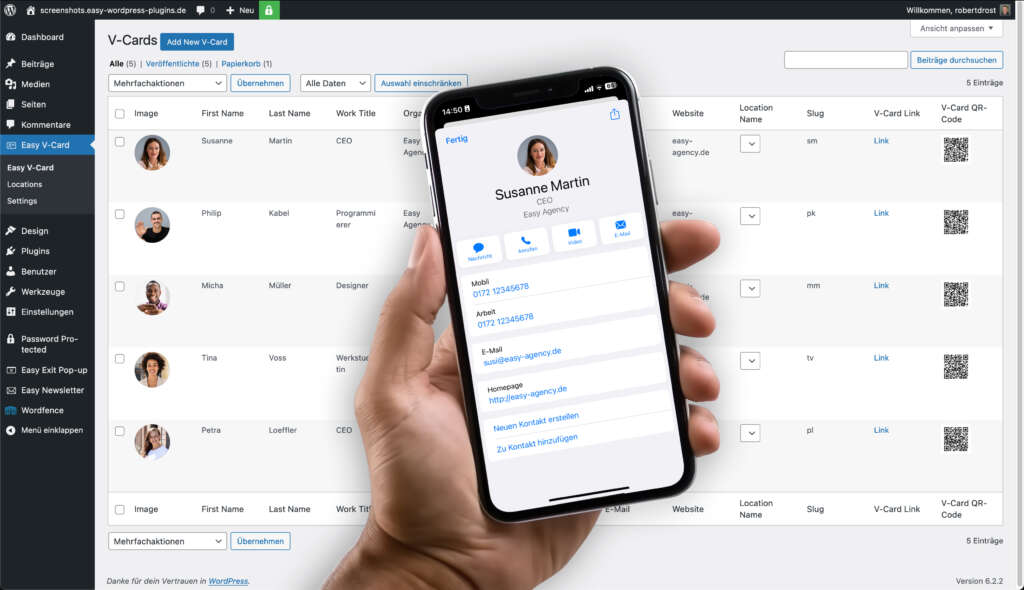
After configuring the basic settings and creating locations, you can create your first vCard. To do this, navigate to the WordPress dashboard and click on „Easy vCard“. The „Add Person“ button will create a new row, which you can now fill with your details. The fields you can fill in are:
- Picture
- First name
- Surname
- Position
- Company
- Phone numbers
- Email addresses
- Websites
- Location
- Slug (short link)
All fields can be edited by clicking on the cell. For „Location“, you can select your previously set location.
The slug (short link) is created automatically. However, you are welcome to adjust it to make it more meaningful. For example, you could use the person's initials. You should bear in mind that slugs must not be duplicated for your created vCards so that the generated links and QR codes function correctly.
When you click on the QR code, it will be downloaded as an SVG file. The „Link“ link will take you directly to the vCard.
Conclusion
In summary, vCards offer a contemporary solution for exchanging contact details in our digital world. Their versatility, standardised format and ease of setup make them an efficient tool for making connections and facilitating communication. The Easy vCard plugin allows you to seamlessly integrate vCards into your WordPress website. By forgoing printed business cards and opting for vCards instead, you not only contribute to environmental friendliness but also to smooth interaction in the digital world. Use vCards to maintain contacts and expand your network.